Table of Contents
How do I create a transactional campaign?
A transaction campaign is an automated notification that is sent specifically to individual users from the existing master data. It is usually triggered by a specific user action. Examples of use cases include an order confirmation after a product order or a password change e-mail after a request for a new password.
Setting up a transactional campaign
- Set up the campaign via create campaign and then select transaction campaign as the type:
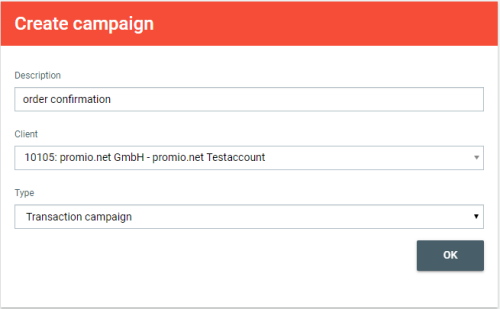
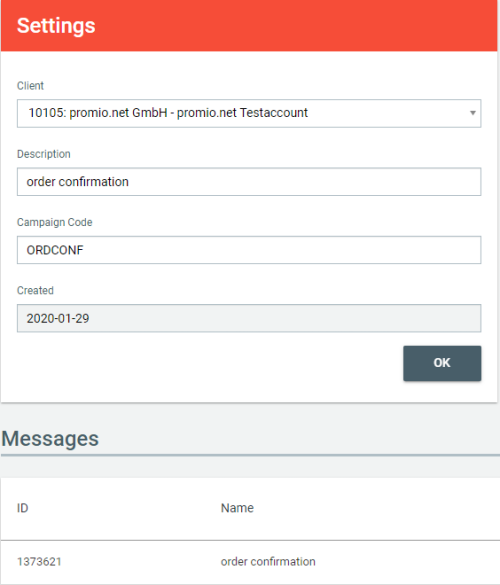
- After setting up the campaign, you can enter or change the following settings in the details:
client: Enter the campaign’s initiator here.
name: Enter a name for the campaign here.
campaign code: You have the option of entering an individual/internal code to identify the campaign.
- Next, set up the message that is to be sent. Messages within a transaction campaign are generally inactive while in creation.
Go through the quality control to avoid mistakes in the message. The delivery of the transactional mail is carried out without a prior automatic quality check.
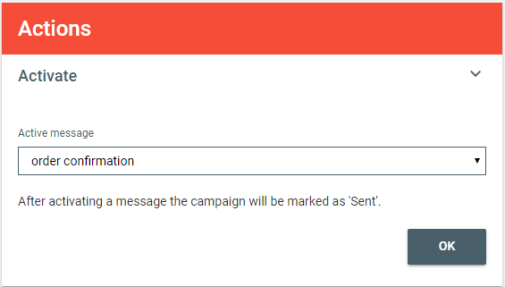
- Set the campaign to active by going to Validate message and choosing the message you want to send. Please note that only one message can be active in a transactional campaign at a time. When using more than one format, a message can be activated for each of these.


Define Recipients
A transactional campaign does not have a fixed target group; instead, sending is triggered by a REST API call of the type transactionalMail. This call must be integrated, for example, on your website at the appropriate location and with the appropriate logic. The sending time and recipient group are therefore not configured via promio.connect, but controlled via the REST API.
The REST API specifications for the transactionalMail call can be found in the article https://api.promio-connect.com/docs/3.1/#tag/Manage-campaign-delivery/operation/sendTransactionalMail.
Within the REST API call, you address the active transactional campaign by its ID. This can be found in the Reporting overview.
Please note that the campaign does not yet have a send date and is therefore sorted at the bottom by default. If necessary, use the advanced search to display the campaign.
Switch messages
It is not possible to edit an active message in a transaction campaign. This means you have to switch the message if needed:
- Go to Reporting, choose the campaign, and then click the tab Details.
- Create a message with the blue button on the bottom right. Make your adjustments there. The new message is automatically inactive at first.
- Exchange the active message at Activate on the upper right. In the list at the bottom, there is a black dot that indicates the active message.
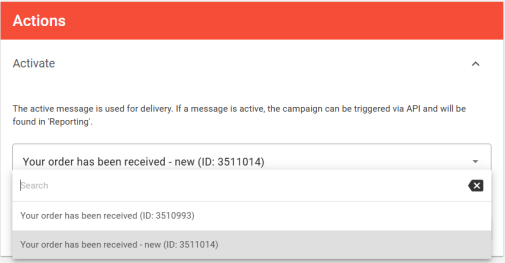
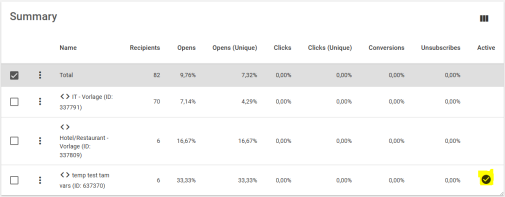
In the list of created messages, the black check mark to the right of the creative shows you which one is currently being used for sending in the campaign.