
This is an old revision of the document!
Table of Contents
How do I integrate coupon codes into my mailing?
You can find a list of all coupon codes that have already been imported under Content > Coupon codes. The remaining amount is reduced after each delivery that uses codes from the corresponding list and assigns one to each recipient.
Import of coupon codes
- Import coupon codes into promio.connect by going to the menu item Content > Coupon code lists and then clicking the button on the bottom right.
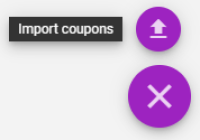 .
. - Select the directory that contains the coupon code list you want to import. After selecting your file, click the Start upload button.
- After successfully importing the list, it is advisable to check the codes and their amount (remaining quantity) in the coupon code table.
Adding new coupon codes
When the codes in a coupon code list are running low, you can add more codes directly to that list.
Under Content → Coupon Code Lists, you can select the list to which codes should be added. Using the plus symbol in the upper right corner, you can easily upload an additional file containing codes to the list. The file should be single-column and in CSV format, similar to creating a code list.
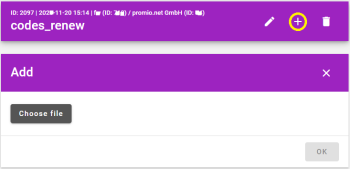
Submitting the action will add the codes to the list.
For existing code lists, the codes will be added without duplicate checking.
For newly created code lists, the codes will be added without duplicates. If the added file contains only codes that are already in the list, the list will remain unchanged.
The message displays both the number of codes added (imported) and the total number of codes available in the list after the import (size).
Integrating the coupon codes in your message
- Switch to your campaign by going to the menu item Delivery > Drafts.
- In the detail view of your message, select the imported coupon code list using the three dots at the top right. Select Assign coupon code list and click save.
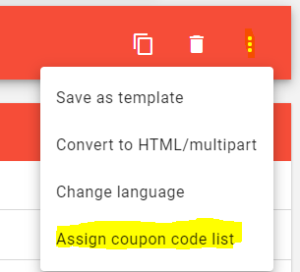
- Now the imported list is connected to your message. Insert a coupon by entering the variable $code in the e-mail’s text.
The variable can also be used in links (when sending out invitations to a survey, for example).
A coupon code list can be assigned to multiple messages.
You can check whether the correct list is assigned in the Quality Control or in the Assign Coupon Code List action.
The $code variable is displayed in the preview on the creative's detail page or in the email editor. It is not displayed in the test email.
Under address research → mailing history, you can find out which coupon code has been assigned to a user.
Unassign from a coupon code list
- Select your campaign by going to the menu item Delivery > Drafts.
- In the detail view of your message, select Assign coupon code list using the three dots at the top right.
Remove the assignment to a coupon code list by selecting Remove assignment.
Selecting this entry shows Please select in the dropdown and delete the assignment from the list when saving.
The action Assign coupon code list is not available for:
* messages in tracking and network tracking campaigns
* DOI messages
* web push, app push, SMS, voice, print
A tutorial on uploading and using coupon codes can be found here:


